lans.cloud Tools

Classroom Noise Meter

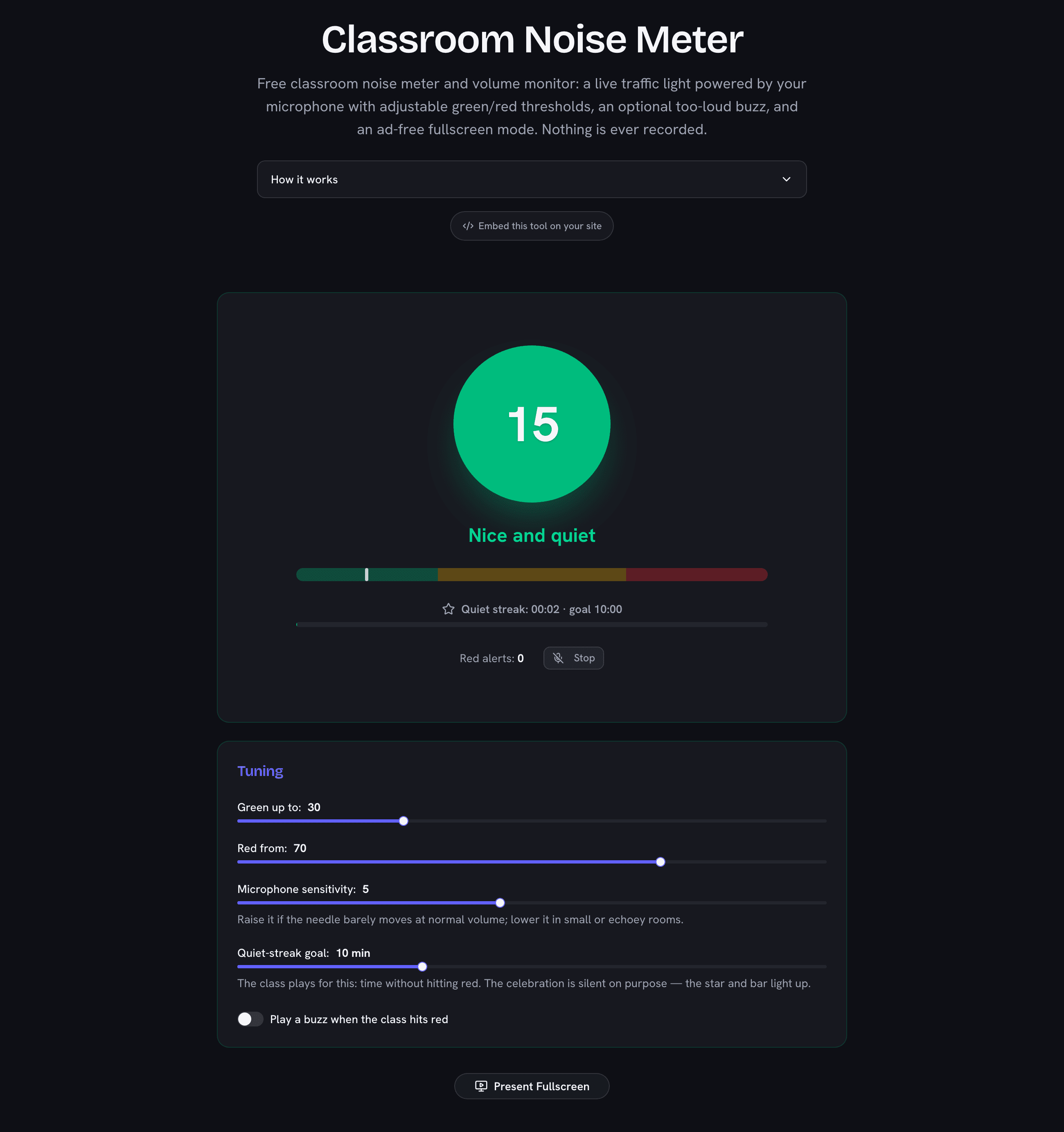
Free classroom noise meter and volume monitor: a live traffic light powered by your microphone with adjustable green/red thresholds, an optional too-loud buzz, and an ad-free fullscreen mode. Nothing is ever recorded.

Was this tool helpful?
Support this site

More tools

Stop Saying “Shhh” — Let Them See It

Noise creep is invisible to the people making it. A noise meter on the projector externalizes the problem: the class watches their own volume as a traffic light, and quieting down becomes a game of keeping the circle green instead of a confrontation with the teacher. Set the thresholds once for the activity — silent reading, partner talk, group work — and let the light do the reminding.

Private by Construction

A tool that listens to a classroom must be boring about privacy, so this one is: the audio stream is reduced to a single loudness number dozens of times per second inside your browser and immediately discarded. No recording, no storage, no upload, no account — and the microphone indicator in your browser tab shows exactly when it is active. Press Stop or close the tab and it is released.

Threshold Recipes That Work

  • Silent work / test: green to 25, red from 55, sensitivity 6 — even whispers show as amber.
  • Partner talk: green to 40, red from 75 — conversation lives comfortably in amber.
  • Group projects: green to 50, red from 85, alert buzz on — only genuine chaos trips the light.

Pair it with the classroom timer for timed quiet blocks, the classroom traffic light for a manual behaviour signal you control, or the scoreboard to award table points for every five minutes the class keeps out of the red.
How Loud Is a Classroom, Actually?

For calibration intuition: acoustics references put typical classroom activities at these sound pressure levels. The meter deliberately shows a relative 0–100 scale rather than decibels — phone and laptop microphones are not calibrated instruments, so honest relative loudness beats fake dB precision. Set the green/red thresholds per activity and the zones do the talking.

Typical classroom sound levels

ActivityTypical levelWhere it lands
Whisper, silent reading30 dBSilent work
Quiet independent work40–50 dBGreen zone
One-on-one conversation55–60 dBGreen zone
Productive group work60–70 dBAmber zone
Whole class talking at once70–75 dBRed zone
Shouting, gym class, cafeteria80–85 dBRed zone
Hearing-protection territory (sustained)85+ dBNever in a classroom

dB values are standard acoustics reference points, not meter readings — the meter's 0–100 scale is relative to your microphone and sensitivity setting.

Frequently Asked Questions

Does the noise meter record my classroom?

No. The microphone audio is analyzed live inside your browser to compute a single loudness number, then discarded instantly — nothing is recorded, stored, or sent to any server. Close the tab or press Stop and the microphone is released.

How do I show it on the smartboard or projector?

Start the meter, then click Present Fullscreen: the traffic light grows to fill the screen with no ads, readable from every desk. The circle turns green when the class is quiet, amber at working volume, and red with a "Too loud!" label when they cross your threshold.

What do the green, amber, and red levels mean?

You decide — the two sliders set where green ends and red begins on a 0–100 scale. A common setup: green up to 30 for silent work, red from 70. For partner work, slide the red threshold higher so normal discussion stays amber.

The needle barely moves (or is always red) — how do I fix it?

Use the sensitivity slider: laptop microphones vary a lot. Raise sensitivity if normal talking barely registers; lower it in small or echoey rooms where everything reads loud. The setting is remembered for next lesson.

Can I use this as a classroom volume monitor?

Yes — noise meter, volume meter, volume monitor, sound level meter: same job. It shows the room’s live volume as a green/amber/red meter the whole class can read, with a sensitivity slider to match your room. Unlike bouncing-ball style monitors, nothing is recorded and the audio never leaves the device.

Is this a noise level meter for the classroom?

Yes — classroom noise level meter, class volume meter, noise-o-meter: teachers use many names for the same idea. It shows the room’s live noise level on a relative 0–100 scale rather than in decibels, because laptop and phone microphones are not calibrated instruments — the sound-level table below shows how the zones map to real dB values.

How does the quiet streak work?

The streak clock counts time without hitting red — set a goal (1–30 minutes) and the class plays against it. Reaching the goal lights up a star and the progress bar; the celebration is deliberately silent, because a fanfare in a quiet classroom would defeat the point. When you stop the meter you get a session summary — “84% green”, time in each zone, red alerts — ready to copy into a class reward chart.

Can it make a sound when the class gets too loud?

Yes — enable the red-alert buzz and the meter plays a short low tone each time the level crosses into red (at most once every couple of seconds). Many teachers prefer it off, letting students self-monitor by watching the light.

Embed This Tool on Your Website

Add the Classroom Noise Meter to your class website, blog, or LMS page: free, with no ads inside the embed. Paste this code where you want the tool to appear:

<iframe src="https://lans.cloud/embed/classroom-noise-meter" width="100%" height="560" style="border:0;border-radius:12px;overflow:hidden" title="Classroom Noise Meter" loading="lazy"></iframe>
<p style="font-size:13px">Powered by <a href="https://lans.cloud/classroom-noise-meter">Classroom Noise Meter · lans.cloud</a></p>
Classroom noise meter showing the live volume circle in the green zone with an adjustable threshold
The room volume as a giant traffic light — audio is reduced to one number in-browser, never recorded.